
By Hridoy Ahmed | Last updated: October 2026 | 10 min read
Short answer: Google Search Console is a free tool from Google that shows how your site is crawled, indexed and shown in Google Search. To use it, verify your site, submit your sitemap, then check four things regularly: the Performance report, the Pages (indexing) report, the URL Inspection tool and the alerts for manual actions or security issues. You do not need to log in every day.
In this guide
- How to set it up
- The Performance report
- The Pages (indexing) report
- The URL Inspection tool
- Other reports worth knowing
- A simple monthly routine
- FAQ
How to set it up
Google’s own getting started guide lists these first steps:
- Verify site ownership. Without verification you will not see your data.
- Consider submitting a sitemap. Google says this can help it discover your pages, though it is not required.
- Monitor your site’s performance in the Performance report.
Domain property or URL-prefix property? A domain property covers all versions of your domain, including http, https and subdomains, and is verified with a DNS record at your domain provider. A URL-prefix property covers one exact address, such as https://www.example.com, and can be verified in other ways, for example with an HTML tag or file. If you can add a DNS record, a domain property gives the most complete data.
Keep more than one verified owner when you can. If the only owner’s account is closed, you lose access.
The Performance report
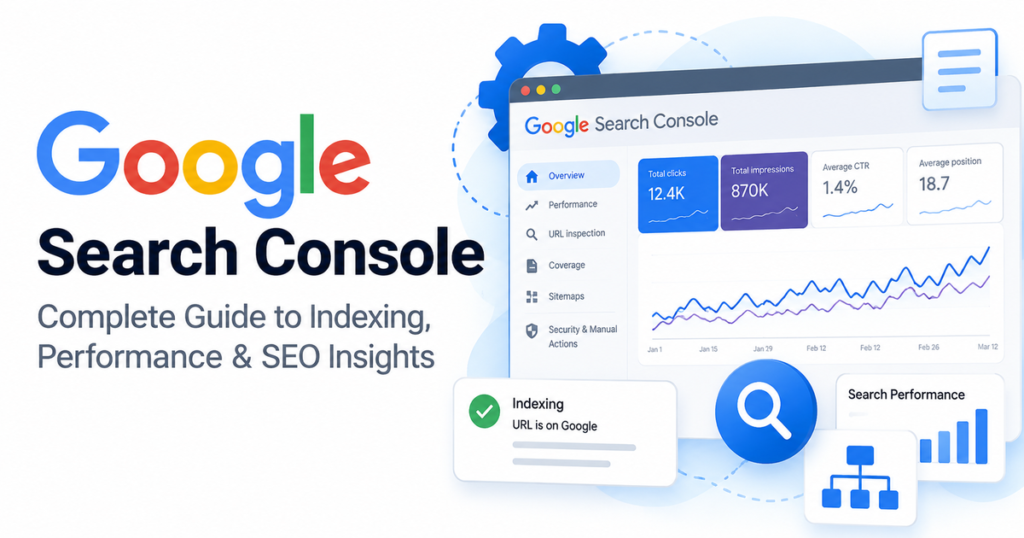
This shows how much traffic you get from Google Search, with breakdowns by query, page, country and device. The main numbers are:
- Clicks: visits from Google Search to your site.
- Impressions: times a link to your site was shown in results.
- CTR: clicks divided by impressions.
- Average position: the average position of your top result for the query or page. It is an average, so use it as a trend.
Useful ways to read it:
- Filter by a page to see which queries bring people to it.
- Filter by a query to see which of your pages appear. This helps find overlapping pages.
- Compare two date ranges after a change.
- Look for queries with many impressions and few clicks. They show where your title or content may not match the search. See content gap analysis.
The Pages (indexing) report
This shows which pages are indexed and why others are not. Open the list of reasons and read what each one means. Do not try to get every URL indexed. Some pages should not be, such as login pages, internal search results and duplicates.
Focus on important pages that are not indexed. For two common messages, see crawled, currently not indexed and why a page may not be indexed by Google.
The URL Inspection tool
Paste a URL in the bar at the top. It shows the current index status of the page and lets you test the live URL, request that Google crawls the page and see details such as the Google-selected canonical. Requesting indexing is a request. It does not guarantee that the page will be indexed, or when. Use it after you publish an important page or make a big update, not for every small edit.
Other reports worth knowing
- Sitemaps: shows the sitemaps you submitted and whether Google could read them.
- Manual actions and Security issues: alerts if Google finds spam or security problems. If you see one, act quickly. For hacked sites, see my WordPress security checklist.
- Core Web Vitals and page experience: shows speed and usability data for groups of pages.
- Links: shows pages that link to you and your top internal links.
- Generative AI performance: shows impressions from AI Overviews and AI Mode. See how to measure AI search visibility.
Search Console also sends email alerts when Google finds a new issue, so you do not need to check it daily.
A simple monthly routine
- Open the Performance report. Compare the last 28 days with the previous period.
- List the pages and queries that grew and the ones that fell.
- Check the Pages report for new indexing problems on important URLs.
- Check manual actions and security issues.
- Use URL Inspection on any new or updated key page.
- Write down what you changed and the date, so you can read the result later.
If you want an expert to set up and read your Search Console data, see my SEO and technical SEO service.
Common mistakes
- Verifying only one URL version and missing data for the others
- Panicking over small daily changes
- Requesting indexing for every URL every day
- Treating average position as an exact rank
- Ignoring manual action and security alerts
- Making many changes at once, so you cannot tell what caused a result
FAQ
Is Google Search Console free?
Yes. It is free for anyone who can verify a website.
How long does data take to appear?
Data usually starts to appear within a few days after verification. Older data from before verification is not available.
Does Search Console improve my rankings?
No. It reports data and problems. The changes you make based on it can help.
Do I also need Bing Webmaster Tools?
It is free and shows how your site performs in Bing and in Microsoft’s AI features, so it is worth setting up. See my guide to underrated SEO tools.
Want help reading your Search Console data? I find the problems and tell you what to fix first. See my SEO and technical SEO service.
About the author: Hridoy Ahmed is an SEO specialist and WordPress security expert based in Dhaka, Bangladesh. He has 8+ years of experience and works with clients worldwide.