
By Hridoy Ahmed | Last updated: October 2026 | 7 min read
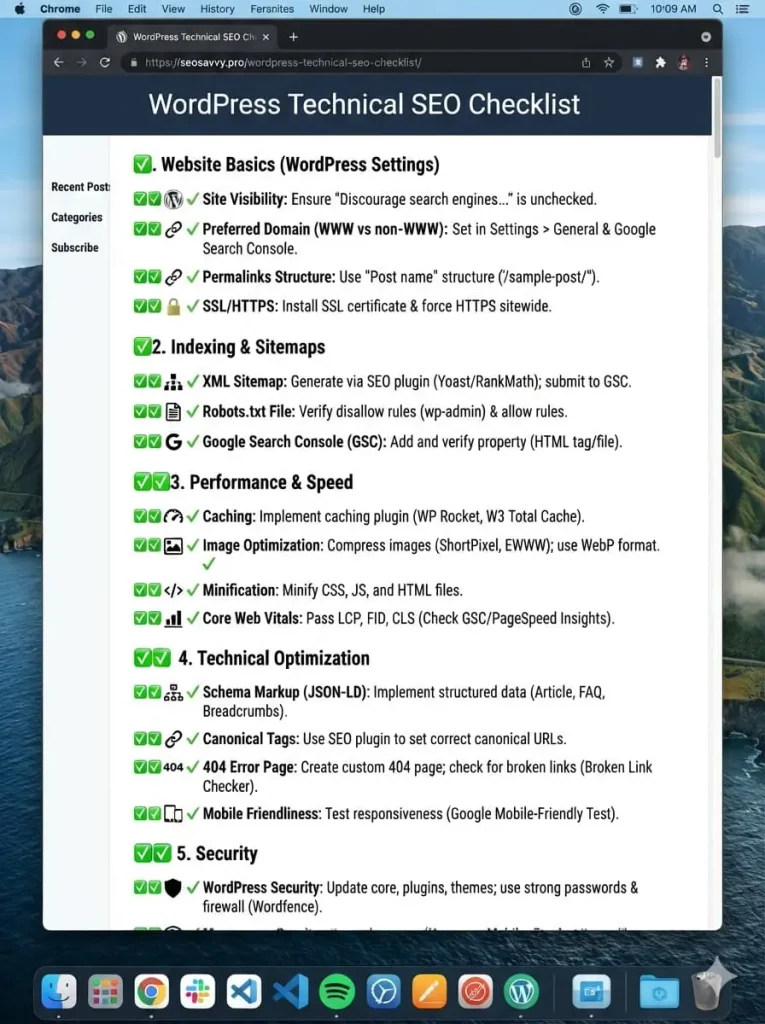
Short answer: A technical SEO checklist for WordPress checks whether search engines can crawl, index and understand your site. Check your indexing settings, robots.txt, XML sitemap, canonical tags, redirects, HTTPS, mobile usability, page speed, internal links and structured data. Fix anything that blocks crawling or indexing first, then improve the rest.
In this guide: 1. Indexing settings | 2. robots.txt | 3. XML sitemap | 4. Canonical tags | 5. Redirects and broken links | 6. HTTPS and mobile | 7. Speed | 8. Internal links | 9. Structured data | Common mistakes | FAQ
Technical SEO means making your site easy for search engines to crawl, index and understand. Content and links matter too, but they cannot help if Google cannot reach your pages. Work through this list from top to bottom. The first items are the ones that can block everything else.
If you would rather have an expert check all of this for you, see my technical SEO services.
1. Check your indexing settings
In WordPress, go to Settings > Reading. Make sure “Discourage search engines from indexing this site” is not ticked on a live site. Then check your SEO plugin (for example Rank Math). Make sure important pages are set to “index” and that no page has a noindex tag by mistake.
This is the most common reason a new site does not appear in Google. Developers often turn noindex on during development and forget to turn it off at launch.
2. Review your robots.txt file
Your robots.txt file is at yourdomain.com/robots.txt. It tells crawlers which areas they may visit. Check that it does not block your content, your CSS or your JavaScript files. Check that it points to your sitemap.
Remember that robots.txt controls crawling, not indexing. To keep a page out of search results, use a noindex tag, not robots.txt.
3. Submit a clean XML sitemap
A sitemap lists the URLs you want search engines to find. WordPress creates one by default, and SEO plugins create their own. Use only one sitemap source so you do not get duplicates.
Your sitemap should list only live, indexable pages. Remove redirected pages, noindex pages and 404 pages. Then submit the sitemap in Google Search Console and Bing Webmaster Tools.
4. Fix canonical tags and duplicate content
A canonical tag tells search engines which version of a page is the main one. WordPress sites often create duplicates through URL parameters, tag pages, category pages and www or non-www versions.
Check that each important page has a canonical tag that points to itself, unless you want another page to be the main version. Pick one version of your domain (www or non-www, https) and redirect the others to it.
5. Fix redirects and broken links
Broken links waste crawl time and frustrate visitors. Redirect chains (A to B to C) slow things down. Use a 301 redirect when a page has moved for good, and point it straight to the final page.
I cover this in more detail in my post on fixing broken links and redirects.
6. Use HTTPS and check mobile usability
Your whole site should load over HTTPS, and every http:// URL should redirect to https://. Google mostly uses the mobile version of your pages for indexing, so your mobile pages must contain the same main content as desktop. Open your key pages on a phone and check that text is readable and buttons are easy to tap.
7. Check page speed
Slow pages hurt visitors, and Google measures real-user experience with Core Web Vitals: LCP (loading), INP (responsiveness) and CLS (visual stability). Check your field data in Search Console. If you fail these metrics, speed work is a separate project. See WordPress speed optimization for that.
8. Improve internal links
Internal links help search engines find your pages and understand how they relate. Check for orphan pages (pages with no internal links pointing to them). Use descriptive anchor text such as “WordPress security checklist”, not “click here”. Keep important pages within a few clicks of the homepage.
9. Add structured data
Structured data (schema) describes your content in a format machines can read. Use JSON-LD. Common types are Organization, Person, Article, Service and FAQPage. Validate your markup with Google’s Rich Results Test. If you use Rank Math, check that you are not adding the same schema twice.
Note that Google now shows FAQ rich results only for a small set of sites, such as well-known government and health sites. FAQ markup can still describe your content clearly, but do not expect a rich result.
Common mistakes
- Leaving noindex on after launch
- Blocking CSS or JavaScript in robots.txt
- Having two sitemaps from two plugins
- Putting redirected or noindex URLs in the sitemap
- Redirect chains after a redesign
- Installing three SEO plugins that fight each other
How often should I run a technical SEO check?
Run a full check at least once or twice a year, and after any redesign, migration or major plugin change. Check Search Console every month for new errors.
Do I need a technical SEO plugin for WordPress?
You need one SEO plugin that handles titles, meta tags, sitemaps and schema. One is enough. Running several creates duplicate tags and conflicts.
What should I fix first?
Fix anything that stops crawling or indexing first. Noindex tags, robots.txt blocks and broken sitemaps come before title tags and schema.
Is technical SEO enough to rank?
No. It removes obstacles. Rankings also depend on content quality, relevance, links and competition.
Want this done for you?
If you do not have time to run these checks, I can audit your site and fix the problems. See my SEO audit and technical SEO service. Get a free audit
About the author: Hridoy Ahmed is an SEO specialist and WordPress security expert based in Dhaka, Bangladesh. He has 8+ years of experience and works with clients worldwide. [About page link]
Related guides: Why Is My Page Not Indexed by Google? | How to Do an SEO Audit Step by Step. Related service: Technical SEO Services