
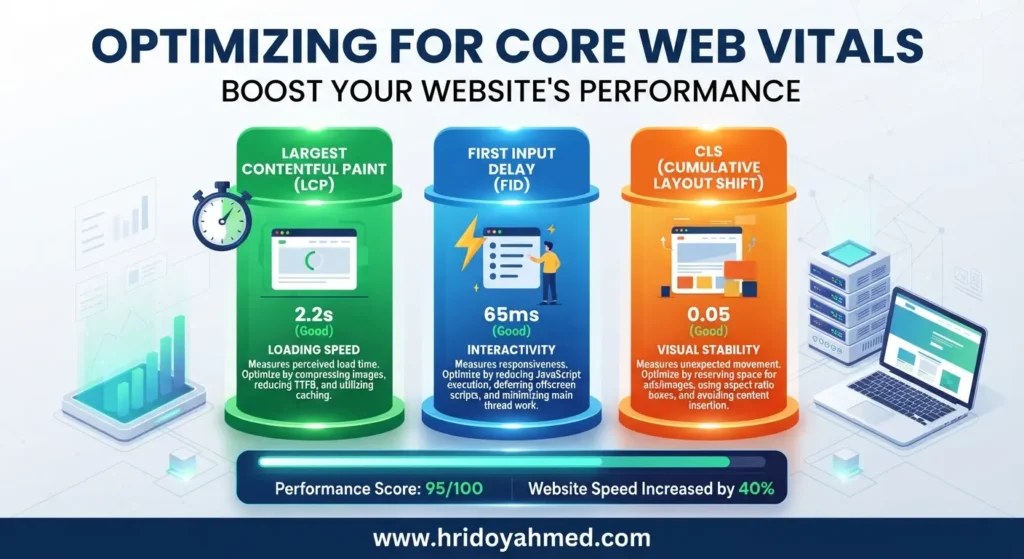
Quick answer: To improve WordPress speed, measure the page first, identify the largest bottleneck, optimize hosting and caching, resize and compress images, reduce unnecessary scripts and plugins, and retest Core Web Vitals. Do not install several optimization plugins or change everything at once: test one change at a time so you can identify what actually helped.
1. Measure before you optimize
Test key page types—homepage, service page, blog post, category page and checkout or lead form if relevant. Use PageSpeed Insights for lab diagnostics and field data where available, and check the Core Web Vitals report in Google Search Console. Repeat tests because network conditions and cache state affect results.
2. Understand the Core Web Vitals
| Metric | What it measures | Practical first check |
|---|---|---|
| LCP | Loading performance of the largest visible content element | Find the LCP element; optimize its image, server response and render-blocking resources |
| INP | Responsiveness to user interactions | Look for long JavaScript tasks and heavy third-party scripts |
| CLS | Unexpected layout shifts | Set image dimensions and reserve space for ads, embeds and late-loading elements |
Google’s “good” thresholds are LCP at 2.5 seconds or less, INP at 200 milliseconds or less, and CLS at 0.1 or less, measured at the 75th percentile. Use the latest official guidance when evaluating field data.
3. Fix hosting and server response
If pages take a long time to begin loading, inspect time to first byte (TTFB), server resources, PHP version, database load, cache configuration and distance to visitors. A plugin cannot fully compensate for an overloaded server. For business-critical sites, compare hosting plans based on measured traffic, support, backups and resource limits—not just introductory price.
Related: How to Reduce TTFB on WordPress.
4. Set up caching correctly
Page caching can serve ready-made HTML instead of rebuilding every page for every visit. Browser caching helps returning visitors reuse static files, while object caching can reduce repeated database work on suitable sites. A CDN can serve assets closer to users. Confirm that logged-in, cart, checkout and personalized pages are excluded where required, and clear caches after important changes.
See our WordPress caching setup guide.
5. Optimize images
- Upload images at the display size rather than sending a huge original to a small container.
- Use a suitable modern format such as WebP or AVIF where supported.
- Compress images without visible quality loss.
- Set width and height to reduce layout shifts.
- Do not lazy-load the main above-the-fold LCP image; lazy-load below-the-fold images where appropriate.
- Use descriptive alt text when the image conveys information.
Detailed guide: How to Optimize Images for WordPress.
6. Reduce unnecessary plugins and scripts
Plugin count alone does not determine speed; the work each plugin performs matters. Remove unused plugins, replace redundant features, and inspect scripts added by page builders, analytics, chat widgets, ads and social embeds. Defer or delay scripts only after checking that menus, forms, tracking and consent controls still work.
If you use Elementor, review the page structure and avoid building every section with heavy nested widgets when a simpler layout can do the job. See Elementor mistakes that slow a website.
7. Reduce CSS, JavaScript and font overhead
Minification can reduce file size, but it does not automatically solve slow rendering or long JavaScript tasks. Remove unused assets where safe, avoid loading multiple font families and weights unnecessarily, and use font-display settings that keep text readable while fonts load. Preload only genuinely critical resources; excessive preloading can compete with more important files.
8. Check database and background work
Large autoloaded options, excessive revisions, transient buildup and expensive queries can affect some sites. Take a backup before cleanup, use tools that match your hosting setup, and avoid deleting database rows simply because a plugin labels them “unused.” Review scheduled tasks and backups if the site slows down at predictable times.
9. Test changes safely
- Record baseline PageSpeed and field data.
- Make one high-impact change, such as image optimization or page caching.
- Test desktop and mobile, logged-in and logged-out states, forms and navigation.
- Clear relevant caches and repeat the same tests.
- Keep the change only if performance improves without breaking functionality.
Common WordPress speed mistakes
- Installing multiple caching or optimization plugins that conflict.
- Lazy-loading the main hero image and making LCP worse.
- Combining CSS or JavaScript without testing page-builder and plugin behavior.
- Optimizing only the homepage while important landing pages remain slow.
- Chasing a perfect lab score instead of improving real-user experience and field metrics.
- Ignoring hosting limits, database issues or third-party scripts.
Frequently asked questions
What is the best WordPress speed optimization plugin?
It depends on your host, cache stack, theme and technical needs. Choose one compatible primary caching solution, test it, and avoid overlapping features without a clear reason.
Does page speed directly improve rankings?
Page experience and Core Web Vitals are part of the broader picture, but good scores do not guarantee rankings. Relevance, usefulness, competition and many other signals matter.
Why is WordPress slow on mobile?
Common causes include large images, heavy JavaScript, render-blocking resources, slow server response and third-party scripts. Use a mobile test to identify the bottleneck instead of guessing.
How often should I test speed?
Test after major theme, plugin, hosting or design changes, and review field data regularly. Real-user data can lag behind a change because it represents a rolling measurement window.
Related speed guides
- Improve Core Web Vitals on WordPress
- Why Is My WordPress Site Slow?
- Best Caching Setup for WordPress
- Technical SEO Checklist for WordPress
Official tools: PageSpeed Insights · web.dev: Web Vitals · Google Search Central: Core Web Vitals