
Short answer: To add a CSRF token to Contact Form 7, create a new WordPress nonce each time the form loads, add it to a hidden field, and verify it when the form is submitted. You do this with one small PHP code snippet and one hidden tag in the form. I have already added the hooks (actions) inside the code, so you only need to paste it into your functions.php file or a code snippet plugin.
Why I wrote this case study
I wanted to protect the Contact Form 7 form on arielpartners.com. I couldn’t find a clear guide with complete, working steps. It took me about 3 days to get it working. This guide gives you the full process in simple steps, so you can do it faster.
What is a CSRF token?
CSRF means Cross-Site Request Forgery. It is an attack where a request is sent to your website from somewhere else, and your site accepts it as if a real visitor sent it.
A CSRF token is a secret value placed inside your form. When the form is sent, your site checks the value. If it is missing or wrong, the request is rejected. In WordPress, this token is called a nonce.
Why does a contact form need a CSRF token?
A contact form is an open door. Anyone can send data to it. A token check adds one more lock:
- Only a form loaded from your real page can be submitted.
- Requests sent from other pages or tools without a valid token are blocked.
- The token is new every time the form loads, so an old token cannot be reused for long.
It is one layer of protection. It does not replace spam protection, updates, strong passwords or a firewall. For a wider review of your site, see my WordPress security service.
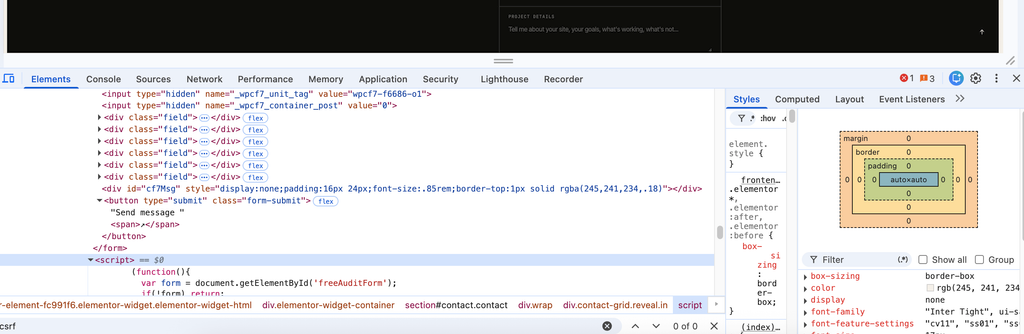
Before: my form without a CSRF token
Step 1: Add the code
Copy the full code below and add it in one of these ways:
- Option A: Paste it at the end of your child theme
functions.phpfile. - Option B: Add it as a PHP snippet in a code snippets plugin such as WPCode.
The action (hook) lines are already inside the code, so you do not need to add anything. Just paste it. Back up your site first, because a small code error can break it.
// CSRF token for Contact Form 7 | Reference: hridoyahmed.com

function cf7_csrf_add_token( $tag ) {
    if ( isset( $tag['name'] ) && 'csrf_token' === $tag['name'] ) {
        $tag['values'] = array( wp_create_nonce( 'cf7_csrf_token' ) );
    }
    return $tag;
}
add_filter( 'wpcf7_form_tag', 'cf7_csrf_add_token' );

function cf7_csrf_verify_token( $contact_form, &$abort, $submission ) {
    if ( ! $submission ) {
        return;
    }

    if ( ! $contact_form->scan_form_tags( array( 'name' => 'csrf_token' ) ) ) {
        return;
    }

    $data  = $submission->get_posted_data();
    $token = isset( $data['csrf_token'] ) ? sanitize_text_field( wp_unslash( $data['csrf_token'] ) ) : '';

    if ( empty( $token ) || ! wp_verify_nonce( $token, 'cf7_csrf_token' ) ) {
        $abort = true;
        $submission->set_response( 'Security check failed. Please reload the page and try again.' );
    }
}
add_action( 'wpcf7_before_send_mail', 'cf7_csrf_verify_token', 10, 3 );
Step 2: Add the hidden tag to your form
Go to your WordPress dashboard, open Contact, and edit your form. Add this tag at the very bottom of the form, just above the submit button:
[hidden csrf_token]Because this is a [hidden ...] tag, visitors cannot see it. The code still runs in the background when the form is submitted. Save the form.
Step 3: Test the form
- Open the page with the form and send a normal message. It should go through.
- Reload the page and send another message. It should work again.
- Check that the email notification still arrives.
- Clear your cache and test once more.
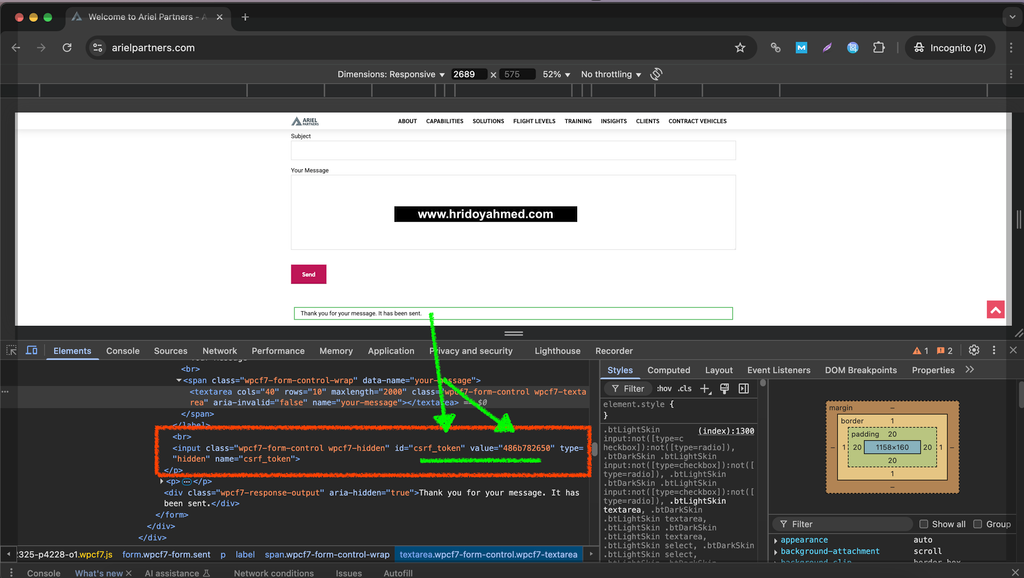
After: my form with the CSRF token
How the code works
- The form loads. The first function creates a fresh token with
wp_create_nonce()and puts it in the hiddencsrf_tokenfield. - The visitor sends the form. The token is sent with the other form data.
- The check runs. The second function uses
wp_verify_nonce()to confirm the token is valid. - If the token is missing or wrong, the message is not sent, and the visitor sees a “Security check failed” message.
Common problems and fixes
- The code does nothing. Check that the snippet is active, or that it is saved in the child theme
functions.php, and that the[hidden csrf_token]tag is saved in the form. - The form says “Security check failed” for real visitors. Page caching may be serving an old token. Exclude the form page from cache, or test with the cache cleared.
- White screen after saving. There is a typo in the code. Restore your backup, or remove the code through FTP or your hosting file manager.
- The code is lost after a theme update. Use a child theme or a snippet plugin, not the main theme file.
Video guides I used while researching
I watched these two videos before writing this guide. They explain the idea, but I found them slow and hard to follow as a non-developer, so I made this simpler step-by-step version:
What I learned
- A complete snippet needs both the token creation and the check hooked in.
- Use a child theme or a snippet plugin, so updates do not remove your code.
- Test the real form after every change.
Frequently asked questions
What is a CSRF token in Contact Form 7?
It is a secret value stored in a hidden field of the form. The site checks it when the form is sent, and rejects the request if it is missing or wrong.
Is a WordPress nonce the same as a CSRF token?
In WordPress, a nonce does the job of a CSRF token. It is created for the visitor and expires after a limited time.
Where do I paste the code?
Paste it at the end of your child theme’s functions.php file, or add it as a PHP snippet in a plugin such as WPCode. The hook lines are already in the code.
Will this stop all spam?
No. Spam bots that load your real page can still get a valid token. Keep your spam protection on as well.
Can a CSRF token break my form?
It can, if page caching serves an old token or if the hidden tag is missing from the form. Take a backup and test the form after the change.
Need help securing your WordPress forms?
If you would rather have this done safely for you, see my WordPress security and malware removal service or contact me for a free audit.
Related guides
- WordPress Firewall (WAF): What It Is and Do You Need One?
- WordPress Two-Factor Authentication (2FA): How to Set It Up Safely
Written by Hridoy Ahmed, SEO specialist and WordPress security expert, with 8+ years of experience.