
By Hridoy Ahmed | Last updated: October 2026 | 8 min read
Short answer: Malware in the WordPress database hides in posts, widgets, options and user tables. To find it, back up the database first, then search for unexpected script tags, iframes and encoded code, and check your administrator users. Remove only the malicious snippet, then clean your files too, because the database infection usually comes from a file-based entry point.
In this guide
- Why attackers use the database
- Where malware hides
- How to find it
- How to clean it
- Common mistakes
- FAQ
Why attackers use the database
Many site owners scan only files. Attackers know this, so they store code, links and spam in the database too. A database infection survives when you reinstall WordPress, because a reinstall replaces files and leaves your content and settings untouched.
Signs of a database infection include spam links inside posts, pop-ups that appear on every page, redirects that stay after you replace your files and users you never created.
Where malware hides
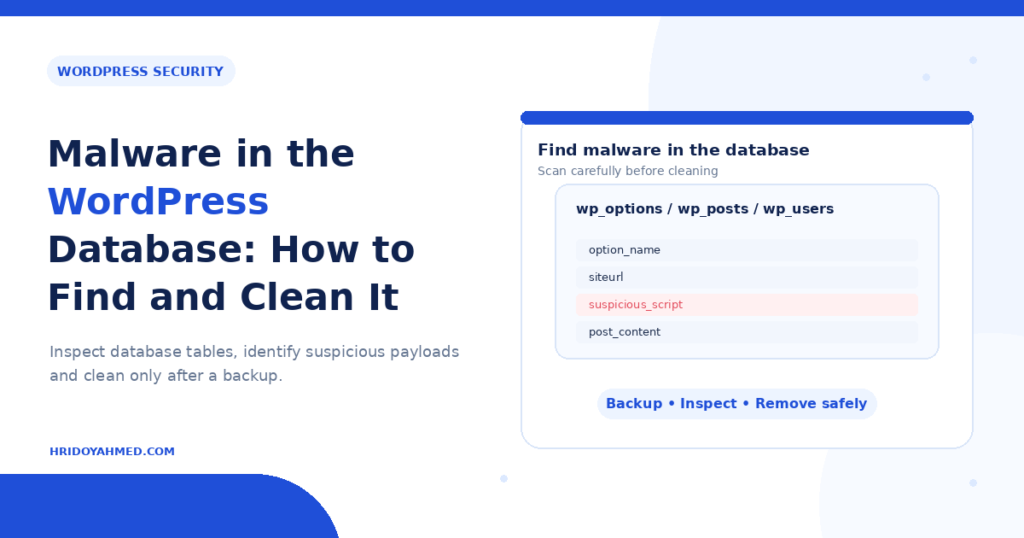
| Table | What to check |
|---|---|
| wp_posts | Script tags, iframes and hidden spam links inside post and page content |
| wp_postmeta | Strange custom fields that hold code |
| wp_options | Widget text, siteurl, home, active_plugins and unknown option names with long values |
| wp_users and wp_usermeta | Administrator accounts you do not recognize |
| wp_comments | Spam links and scripts in comments |
The table prefix on your site may differ from wp_. Check the prefix in wp-config.php.
How to find it
- Back up the database. Export it before you change anything. Keep the copy.
- Search the content. In phpMyAdmin or with WP-CLI’s
wp db searchcommand, search for these strings:<script,<iframe,base64_decode,eval(,display:noneand domains you do not recognize. Some results are harmless, for example a real YouTube embed. - Check site address options. Open wp_options and confirm that siteurl and home show your real domain.
- Review users. List users with the administrator role. Remove any that you do not know. My guide on unknown admin users explains how.
- Check plugin and widget settings. Look at custom code fields, header and footer script settings and text widgets.
- Scan with a security plugin. A scanner can flag suspicious database entries. Treat the result as a lead, not a verdict.
How to clean it
- Remove the exact malicious code. Edit the affected post, widget or option. Do not delete a whole row unless you know what it does.
- Be careful with serialized data. WordPress stores many settings as serialized text, and a manual edit can break it. WP-CLI’s
wp search-replacehandles serialized data correctly. Always test on a copy. - Delete rogue users. Reassign their content to a trusted account.
- Clean the files. Find how the code got in. See my guide to WordPress backdoors.
- Change passwords. Reset WordPress, hosting, FTP and database passwords, then update wp-config.php.
- Re-scan. Run the same searches again and check your site on mobile and desktop. If you want an expert to do this for you, see my WordPress malware removal service.
Common mistakes
- Cleaning the database but not the files, so the infection comes back.
- Running a bulk search-and-replace without a backup.
- Deleting entries you do not understand, such as active_plugins, and breaking the site.
- Skipping the user list.
- Trusting a green scan without a manual check.
FAQ
Can malware live only in the WordPress database?
Yes, injected scripts and spam links can sit only in the database. Attackers still need a way in, so check your files too.
Does reinstalling WordPress remove database malware?
No. A reinstall replaces core files. Your posts, options and users stay in the database.
Which tables should I check first?
Start with wp_posts, wp_options and wp_users. Most database infections show up there.
Is it safe to edit the database myself?
It is safe if you back up first and change only what you understand. Test on a copy when you can.
How do I know the database is clean?
Search again for the same patterns, review your users and check your pages on mobile and desktop. No tool proves a site is 100% clean, so keep monitoring.
Not sure what is safe to delete? I clean databases and files by hand. See my WordPress security and malware removal service.
About the author: Hridoy Ahmed is an SEO specialist and WordPress security expert based in Dhaka, Bangladesh. He has 8+ years of experience and works with clients worldwide.