
By Hridoy Ahmed | Last updated: October 2026 | 7 min read
Short answer: A mixed content warning appears when your page loads over HTTPS but some files, such as images, scripts or fonts, still load over HTTP. To fix it, find the HTTP links, change them to HTTPS in your content, theme and database, and make sure your site address and redirects use HTTPS. Always take a backup before you change URLs in the database.
In this guide
- What mixed content is
- How to find it
- How to fix it in WordPress
- What to check afterwards
- Common mistakes
- FAQ
What mixed content is
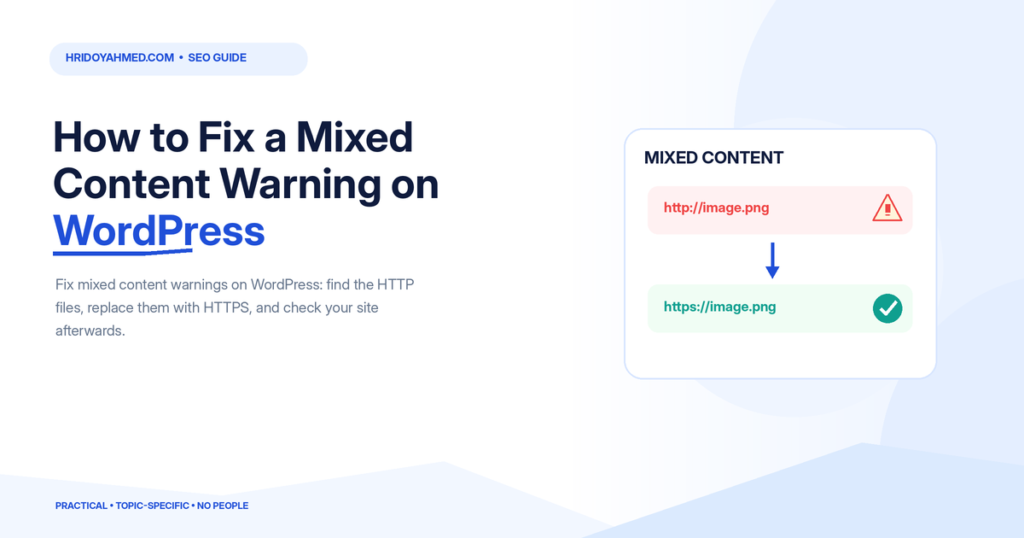
When you move to HTTPS, every file on the page should also load over HTTPS. If one image or script still uses an http:// address, the page is “mixed”. Browsers may block it or show a warning, and the padlock can disappear. Blocked scripts or styles can break your layout. This is why it matters right after you install an SSL certificate.
How to find it
- Open the page in Chrome and press F12 to open DevTools.
- Go to the Console tab. Mixed content messages name each HTTP file.
- Use a free scanner such as Why No Padlock to check a URL.
- Check your theme, widgets, page builder and any custom code for hard-coded
http://links.
How to fix it in WordPress
- Back up your site and database. Do this first.
- Set both site URLs to HTTPS. Go to Settings, General and check the WordPress Address and Site Address.
- Replace old HTTP URLs in the database. Use a search and replace tool that handles serialized data safely, such as the Better Search Replace plugin, or WP-CLI. Replace
http://yourdomain.comwithhttps://yourdomain.com. Run a dry run first. - Fix page builder settings. If you use Elementor, use its Replace URL tool and then regenerate CSS and data.
- Update theme and plugin settings. Check logos, fonts, custom CSS and header or footer scripts.
- Fix external resources. Change third-party files to HTTPS. If a service does not offer HTTPS, remove it.
- Redirect HTTP to HTTPS. Add a 301 redirect at the server or through your host.
- Clear the cache. Clear your cache plugin and your CDN cache.
If you are not comfortable editing the database, ask for help. My website maintenance and migration service includes HTTPS fixes.
What to check afterwards
- Open key pages and confirm the padlock shows
- Check that the DevTools console has no mixed content errors
- Update your sitemap and canonical tags to HTTPS
- Check Search Console for the HTTPS property
Mixed content is one of the checks in my technical SEO checklist.
Common mistakes
- Running a database search and replace without a backup
- Using a simple find and replace that breaks serialized data
- Forgetting the CDN or cache, so old URLs stay
- Fixing the content but not the theme or builder settings
- Using a plugin that hides the warning but leaves the HTTP links in place
FAQ
What is a mixed content warning?
It is a browser warning that an HTTPS page is loading some files over unsecure HTTP.
Does mixed content hurt SEO?
It can hurt user trust and break page features, which can hurt engagement. It is best to fix it.
Why do I still see mixed content after installing SSL?
Old posts, theme files or builder settings still contain HTTP links. A search and replace and a cache clear usually fix it.
Can a plugin fix mixed content?
Some plugins rewrite HTTP to HTTPS on the fly. They can help, but fixing the links at the source is cleaner.
Is mixed content a security risk?
Yes. An HTTP file can be changed by someone on the network, which is why browsers block risky types such as scripts.
Stuck with a padlock that will not show? I will find the HTTP files and fix them safely. See my website maintenance and migration service.
About the author: Hridoy Ahmed is an SEO specialist and WordPress security expert based in Dhaka, Bangladesh. He has 8+ years of experience and works with clients worldwide.