
By Hridoy Ahmed | Last updated: October 2026 | 8 min read
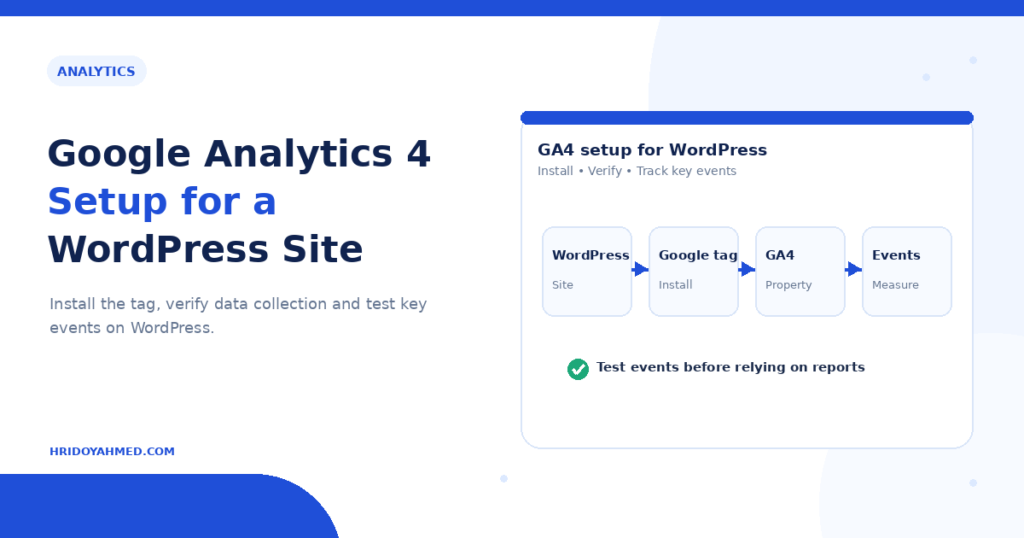
Short answer: To set up Google Analytics 4 on WordPress, create a GA4 property and a web data stream, copy the Measurement ID that starts with G-, add it to your site with the Site Kit plugin or a header snippet, then test it in the Realtime report. After that, set data retention to 14 months, exclude your own traffic, mark key events and link Google Search Console.
In this guide
- Step 1: Create the GA4 property
- Step 2: Add the tag to WordPress
- Step 3: Test it
- Step 4: Change key settings
- Step 5: Mark key events
- Step 6: Handle privacy and consent
- Common mistakes
- FAQ
Step 1: Create the GA4 property
- Go to Google Analytics and sign in with your Google account.
- Create an account, then create a property. Enter your site name, time zone and currency.
- Choose Web as the platform and enter your site URL to create a data stream.
- Copy the Measurement ID. It looks like
G-XXXXXXXXXX.
Step 2: Add the tag to WordPress
Pick one method. Do not use two, because duplicate tags count every visit twice.
Method A: Site Kit by Google
Site Kit is Google’s official WordPress plugin. Install it, connect your Google account and choose your GA4 property. It adds the tag for you and shows basic reports in your dashboard.
Method B: Header snippet
Copy the Google tag from your data stream settings. Paste it into the head section of your site with a header and footer scripts plugin or a code snippets plugin. Keep the snippet exactly as Google gives it.
Method C: Google Tag Manager
Use this method if you already manage several tags. Add the Tag Manager container to WordPress and create a GA4 configuration tag with your Measurement ID.
If you use an SEO plugin or a theme that already has an analytics field, check that it does not add a second tag.
Step 3: Test it
- Open your site in a new tab or on your phone.
- In GA4, open Reports, then Realtime.
- Look for your visit. It can take a few moments.
- For deeper checks, use DebugView in the GA4 admin.
If you see nothing, clear your cache, check for an ad blocker in your browser and confirm that the Measurement ID is right. A tag that fails can also point to wider technical problems, which a full audit through my technical SEO service would check.
Step 4: Change key settings
- Data retention. In Admin, open Data collection and modification, then Data retention. GA4 keeps event data for 2 months by default. Change it to 14 months if you want longer comparisons in some reports.
- Internal traffic. Define your own IP address as internal traffic, then activate the internal traffic data filter so your visits do not distort the data. Check how a filter behaves in testing mode first.
- Enhanced measurement. Keep it on. It tracks page views, scrolls, outbound clicks, site search, file downloads and more. Turn off anything you do not need.
- Search Console link. In Admin, open Product links, then Search Console links, and link your property. This puts search queries next to your site behavior.
Step 5: Mark key events
A key event is an action that matters to your business, such as a form submission, a phone click or a purchase. Google used to call them conversions in GA4. Pick two or three actions, make sure GA4 records each as an event and mark them as key events in the Events or Key events section.
If you track forms, check how your form plugin works. Some forms send the user to a thank-you page. Others submit without a reload and need a custom event. Test each form after you set it up.
Step 6: Handle privacy and consent
Analytics uses cookies and other identifiers. Many countries require consent before you set them. Add a cookie notice that fits the rules where your visitors live, and update your privacy policy. I am not a lawyer, so check your legal duties with a professional.
Common mistakes
- Installing the tag twice.
- Forgetting to filter out your own visits.
- Leaving data retention at 2 months.
- Tracking every click as a key event.
- Skipping the test.
- Reading data without a goal. Decide which questions you want answered first.
FAQ
Do I need a plugin to install GA4 on WordPress?
No. You can paste the Google tag into your site head. A plugin such as Site Kit makes it easier.
How long does GA4 take to show data?
The Realtime report shows visits within moments. Standard reports can take up to a day to fill.
What is a Measurement ID?
It is the code that starts with G- and tells Google which property receives your data.
What happened to conversions in GA4?
Google renamed them key events. You mark an event as a key event to report it as important.
Does GA4 replace Google Search Console?
No. GA4 shows what people do on your site. Search Console shows how your site performs in Google Search. Use both. Read my Search Console guide.
Want help turning data into SEO fixes? I audit your site by hand and give you a clear plan. See my technical SEO service.
About the author: Hridoy Ahmed is an SEO specialist and WordPress security expert based in Dhaka, Bangladesh. He has 8+ years of experience and works with clients worldwide.