
By Hridoy Ahmed | Last updated: October 2026 | 9 min read
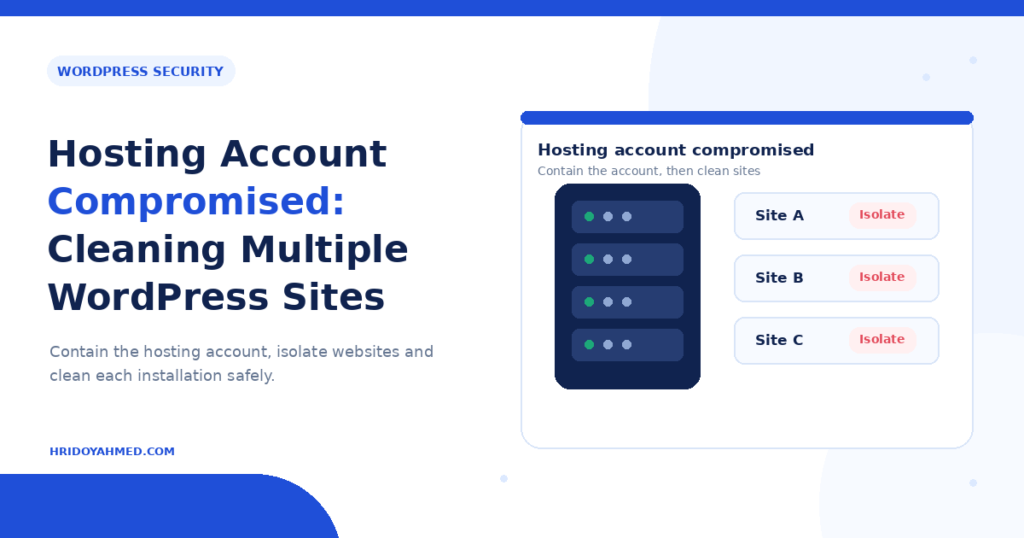
Short answer: When a hosting account is compromised, every WordPress site inside it is at risk, even the ones that look fine. Lock down the account first, back up everything, then scan and clean each site, old and unused folders included. Change all passwords and keys, remove sites you no longer need and, for the long term, give each site its own account.
In this guide
- Why one hack spreads to every site
- Step 1: Lock down the account
- Step 2: Find every infected site
- Step 3: Clean each site
- Step 4: Check the account itself
- How to prevent it
- FAQ
Why one hack spreads to every site
On many hosting plans, several WordPress sites share one account. They share the same file area, and malware in one site can often read and write files in the others. A forgotten test site or an old install with outdated plugins is a common starting point. You clean your main site, and the infection returns from the neighbor folder.
Signs of an account-level problem include several sites showing spam at once, the same malicious file names across different folders, reinfection right after cleanup and unknown FTP users or cron jobs.
Step 1: Lock down the account
- Contact your host. Tell them the account is compromised. Many hosts offer scans, logs and temporary suspension of malicious processes.
- Change the hosting panel password. Use a long, unique password and turn on two-factor authentication if the host offers it.
- Change FTP and SSH access. Delete FTP accounts and SSH keys you do not recognize. Create new ones if you need them.
- Back up everything. Download all files and databases, even infected ones. Keep them offline for later review.
- Consider taking sites offline. If visitors see spam or malware warnings, maintenance mode protects them while you work.
Step 2: Find every infected site
Make a list of every site in the account. Check the main folder, the folders for add-on domains, subdomains, staging copies and old projects. Look in unusual places too, for example folders named “old”, “test” or “backup”.
- Run a malware scan across the whole account, not one site at a time.
- Compare WordPress core and plugin files with the official copies. WP-CLI offers
wp core verify-checksumsandwp plugin verify-checksums --allfor this. - Look for PHP files in uploads folders, files with random names and recently changed files you did not edit.
- Check .htaccess files in every folder.
- Review cron jobs in the hosting panel and WordPress scheduled events.
Step 3: Clean each site
Treat every site as infected until you prove it is clean. For each site:
- Reinstall WordPress core and all plugins from the official source.
- Remove unused plugins and themes, and replace any nulled (pirated) ones.
- Remove malicious code from theme files and the database. See my guides on database malware and backdoors.
- Delete unknown administrator users. My guide on unknown admin users shows how.
- Change the WordPress admin passwords, the database password and the security keys.
Delete any site you no longer use. An abandoned install is the easiest door for an attacker. I scan whole accounts and clean every site as part of my malware removal service.
Step 4: Check the account itself
- List FTP, SSH and email accounts and remove the ones you do not know.
- Check email forwarders. Attackers sometimes forward password-reset mail to themselves.
- Check the domain registrar and DNS records for changes you did not make.
- Update the PHP version to one your host supports and that still gets security fixes.
- Ask your host for access logs and look for logins from places or times that do not match you.
Sometimes the attacker entered through the host, not WordPress. If you cannot find the entry point, say so, close every likely door and monitor.
How to prevent it
- Separate accounts. Put important sites in separate hosting accounts, so one hack cannot reach the others.
- Keep everything updated, including sites you rarely visit.
- Use strong, unique passwords and two-factor authentication.
- Keep offsite backups and test a restore. See how often to back up WordPress.
- Follow a checklist. Use my WordPress security checklist.
FAQ
Can a hack in one WordPress site infect others on my hosting?
Yes, on shared accounts it often can, because the sites share a file area. That is why you scan the whole account.
Do I need to clean every site?
Treat all of them as suspect and scan each one. A site that looks fine may hold a hidden backdoor.
Should I switch hosts?
Not always. Switching helps if the host was the entry point or does not help you. Cleaning first matters more, or you move the infection to the new host.
How long does cleanup take?
It depends on how many sites and how deep the infection goes. A single small site is quicker than ten sites with backdoors. I give you a time estimate after I look at your account.
How do I stop reinfection?
Remove every backdoor, update everything, change all credentials, delete unused sites and separate important sites into their own accounts. Then monitor for several weeks.
Many sites, one account, no time? I scan the whole account and clean each site. See my WordPress security and malware removal service.
About the author: Hridoy Ahmed is an SEO specialist and WordPress security expert based in Dhaka, Bangladesh. He has 8+ years of experience and works with clients worldwide.